Relationship Digest Lite Documentation
Relationship Digest Lite Documentation
Step 1: Find earliest sent email date
Log into your “Sent” inbox…
Click on the “Show search options” on the right-hand side of the search bar.
Log into your “Sent” inbox…
Click on the “Show search options” on the right-hand side of the search bar.
“Show search options”
“Show search options”
… enter the first day of the year you started using the inbox in the right box under “Date within” and put the range to 1 month.
Then flip through the pages and get the earliest sent email… and keep moving the date earlier until you get the earliest earliest sent date.
Example:
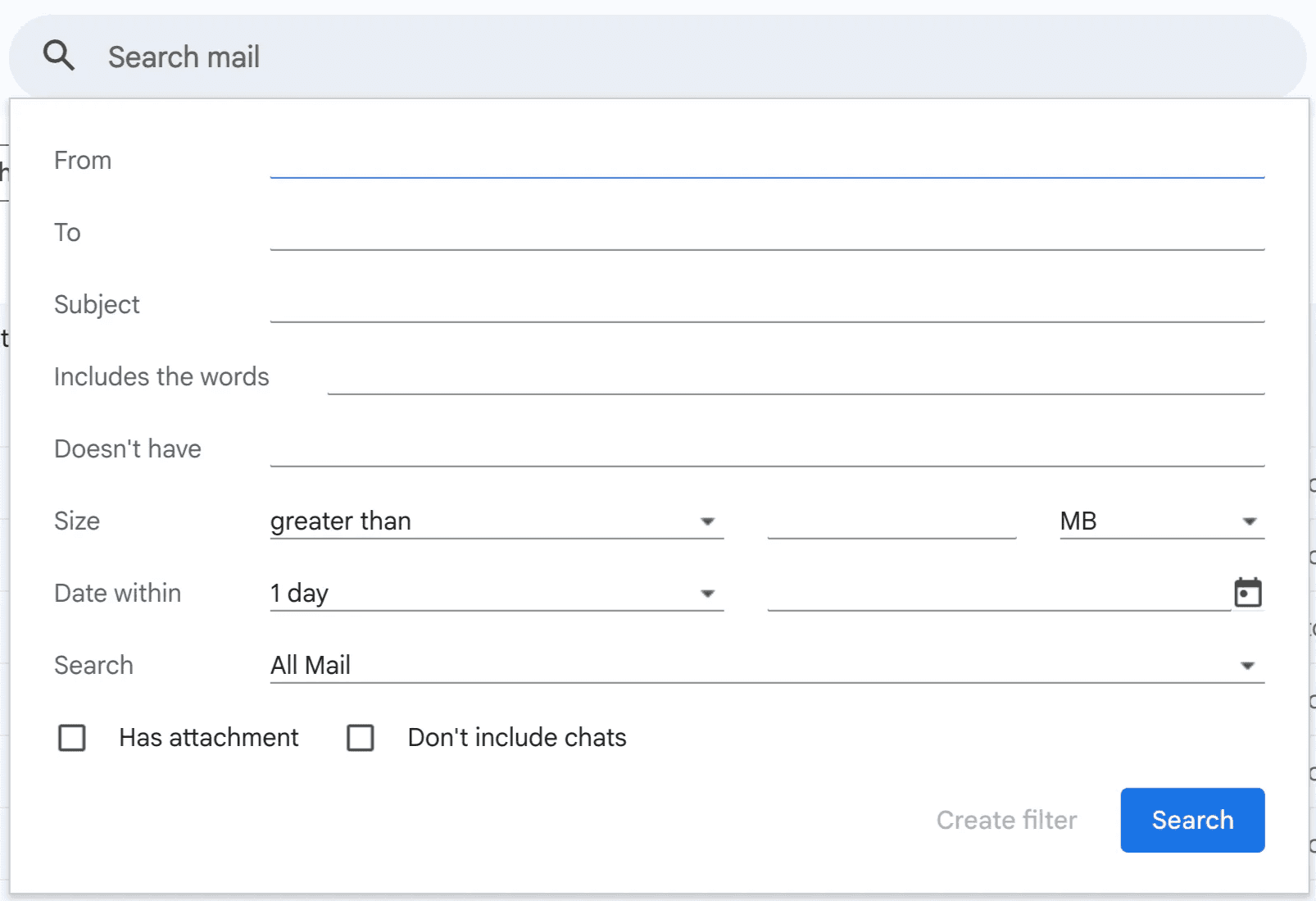
You should see this now…
You should see this now…
… enter the first day of the year you started using the inbox in the right box under “Date within” and put the range to 1 month.
Then flip through the pages and get the earliest sent email… and keep moving the date earlier until you get the earliest earliest sent date.
Example:
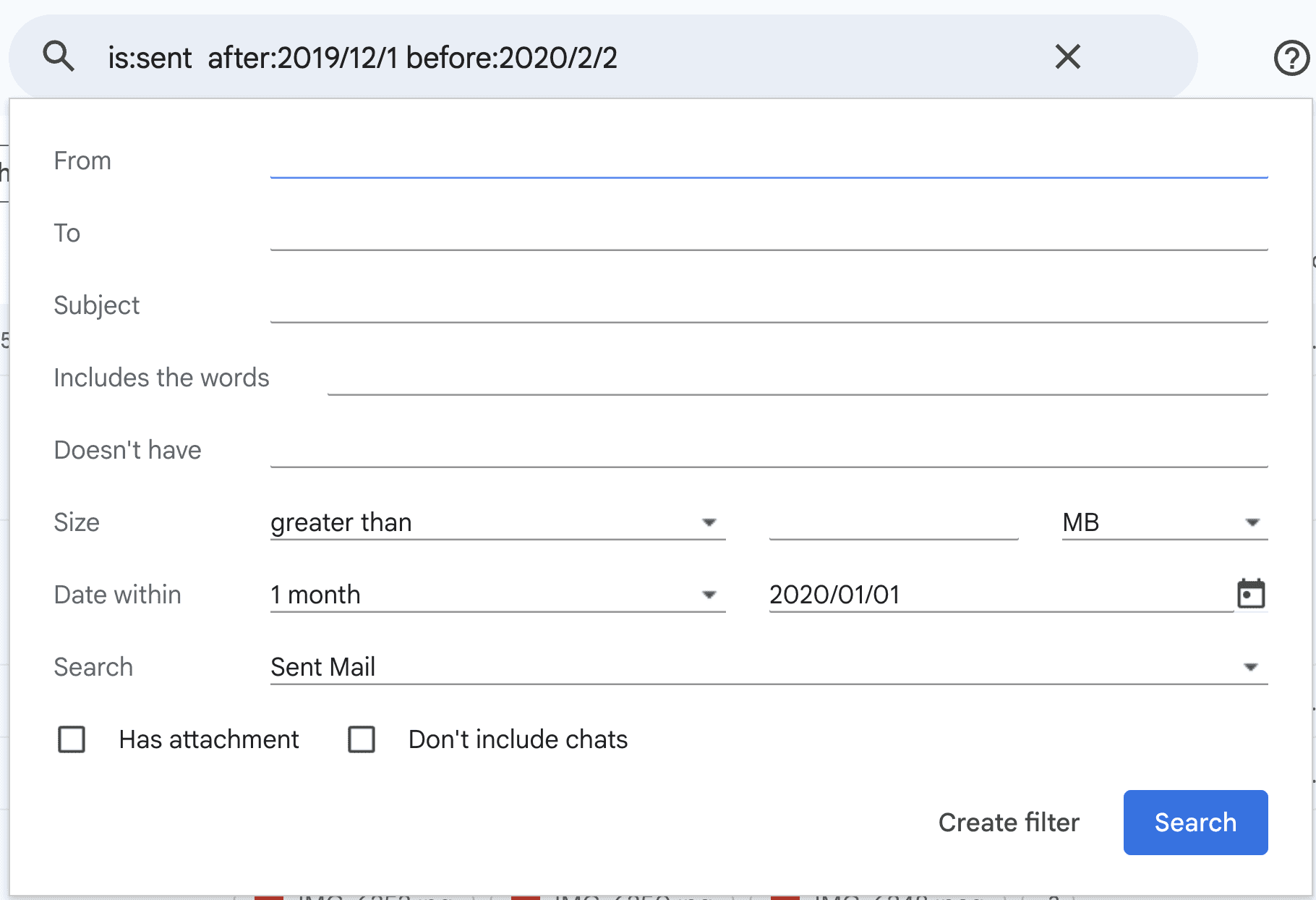
I started using the above inbox around 2020, so I’ll input 2020/01/01 and set the range to 1 month… which gives me all the email threads I’ve sent from 2019/12/01 to 2020/02/02.
I started using the above inbox around 2020, so I’ll input 2020/01/01 and set the range to 1 month… which gives me all the email threads I’ve sent from 2019/12/01 to 2020/02/02.
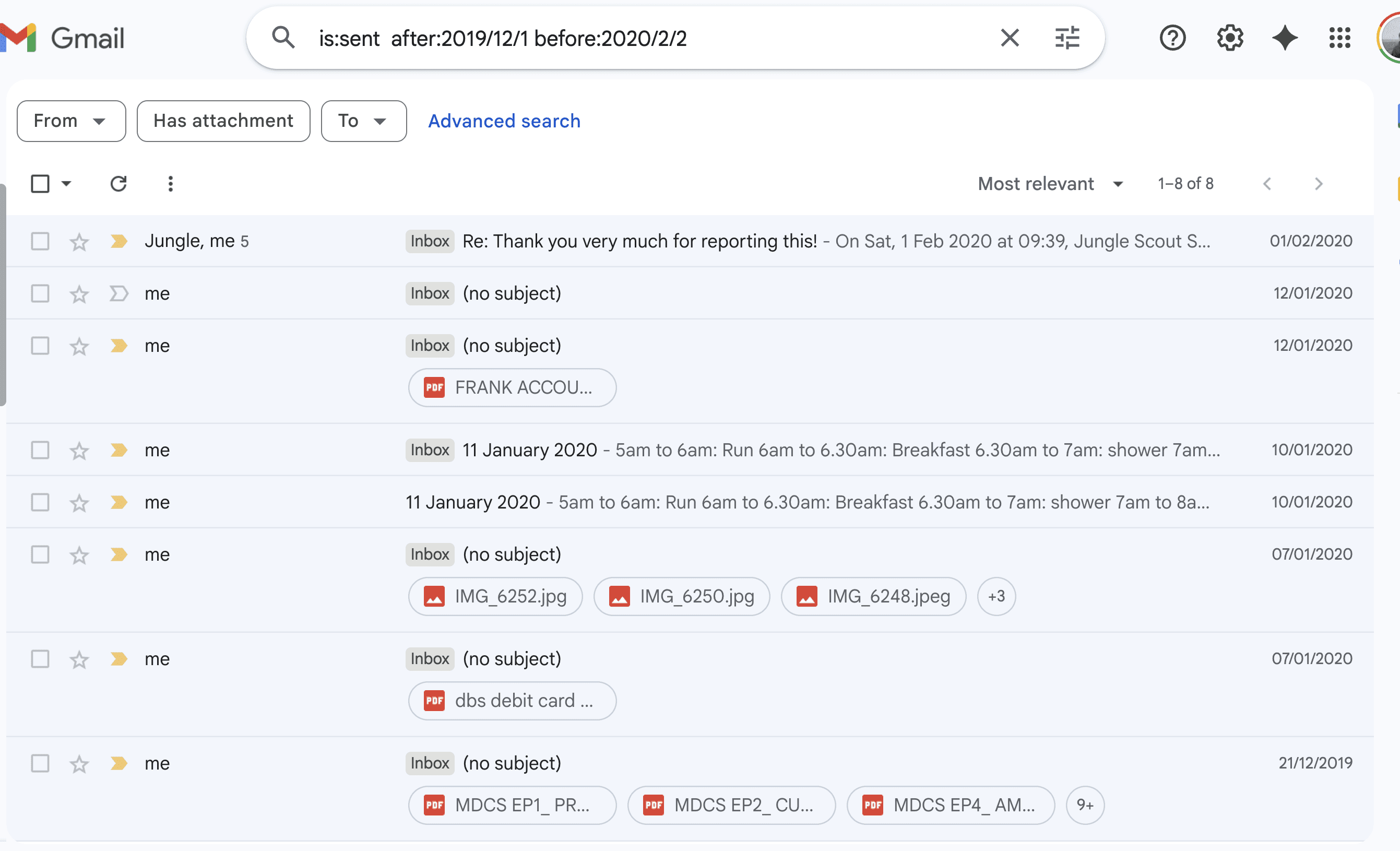
After finding the earliest date, 2019/12/21, I shifted 2020/01/01 a month earlier to 2019/12/01… to make sure that’s really the earliest date.
After finding the earliest date, 2019/12/21, I shifted 2020/01/01 a month earlier to 2019/12/01… to make sure that’s really the earliest date.
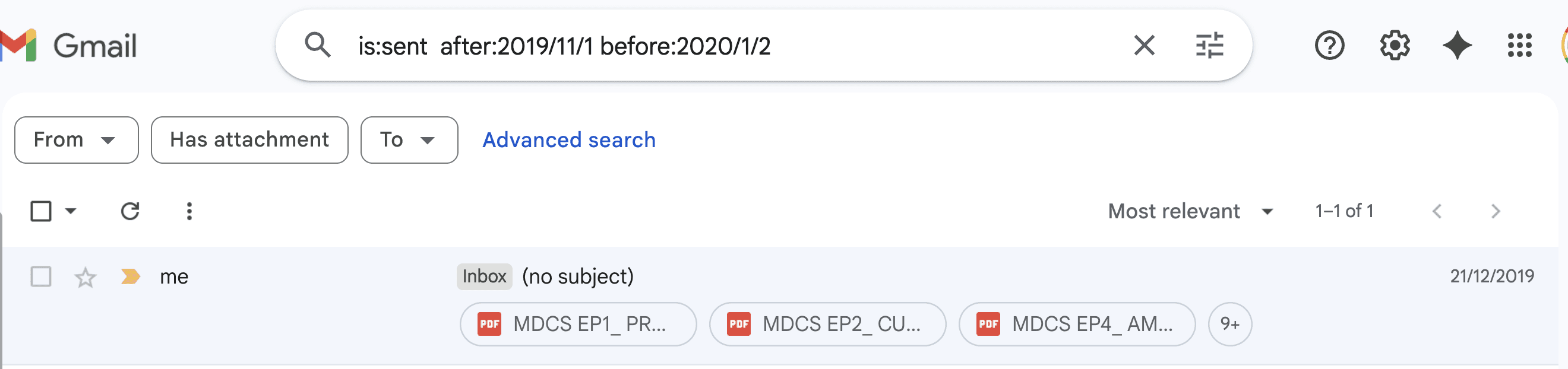
… and indeed, after a few more backtracking, I can confirm that 2019/12/21 is my earliest sent date.
… and indeed, after a few more backtracking, I can confirm that 2019/12/21 is my earliest sent date.
Step 2: Daily scrapes
Now, the earliest sent email date will be your Reconnection Range Date (RRD). And we’ll use that every day to search for old contacts.
Here’s how it goes…
Click Show search options
Set the range to 1 week on the left under “Date within”
Input RRD on the right
Hit search and you’ll get 2 weeks’ worth of email threads
Handpick 3 contacts and note them down in the Reconnection Master Sheet, alongside the RRD (so you know where you left off the last time)
Repeat step 1 the next day
Once the old contacts run out in the current 2-week range, repeat the same steps while adding 2 more weeks to the RRD.
Example:

My RRD is 2019/12/21 and here’s the range I got after my first search…
My RRD is 2019/12/21 and here’s the range I got after my first search…
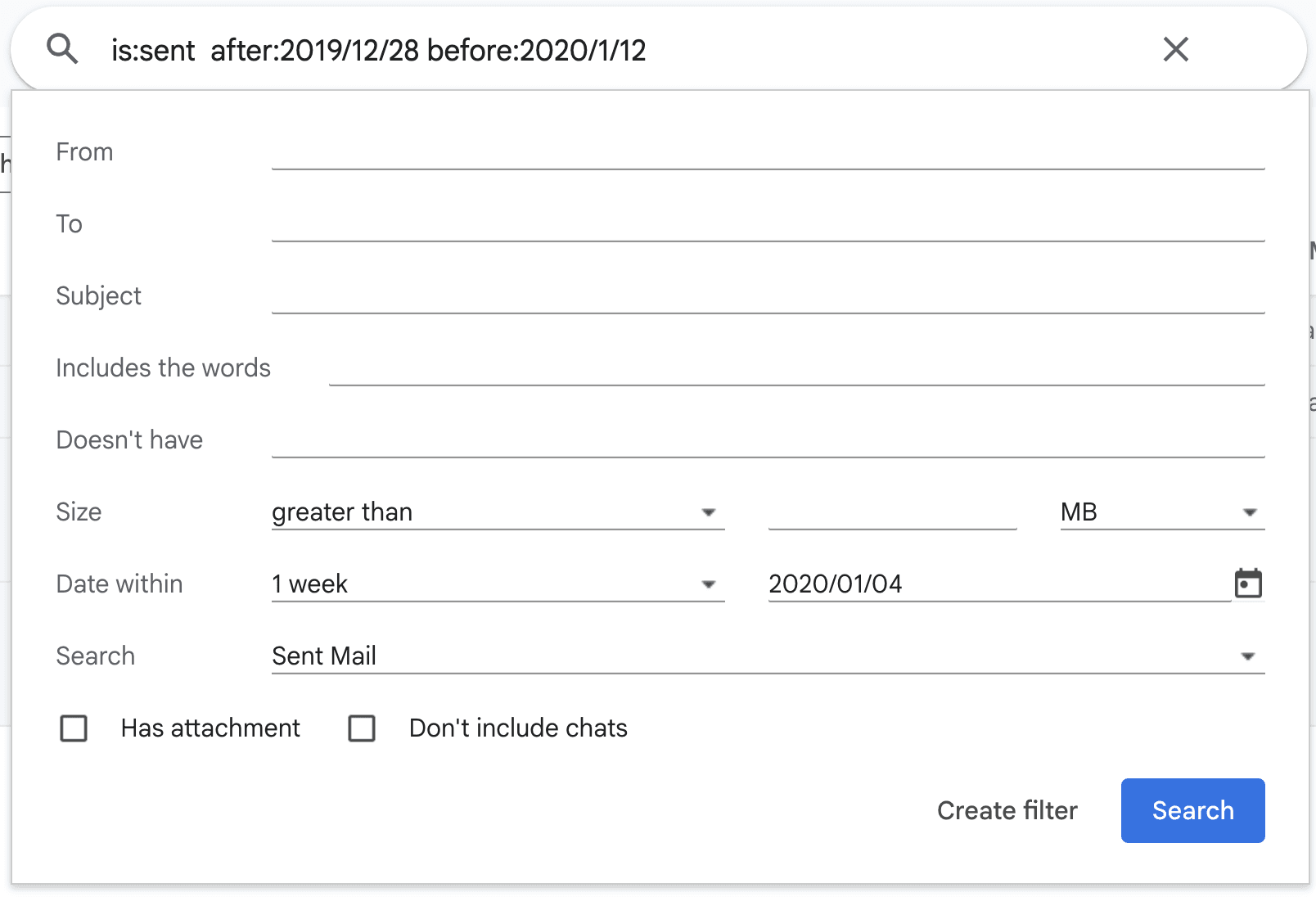
After running out of contacts in that range, I added 2 weeks to my RRD (new RRD: 2020/01/04) which gives me the threads from 2019/12/28 to 2020/01/12.
After running out of contacts in that range, I added 2 weeks to my RRD (new RRD: 2020/01/04) which gives me the threads from 2019/12/28 to 2020/01/12.
In short…
Find the earliest sent email date and focus on searching using the RRD.
In short…
Find the earliest sent email date and focus on searching using the RRD.
Now, the earliest sent email date will be your Reconnection Range Date (RRD). And we’ll use that every day to search for old contacts.
Here’s how it goes…
Click Show search options
Set the range to 1 week on the left under “Date within”
Input RRD on the right
Hit search and you’ll get 2 weeks’ worth of email threads
Handpick 3 contacts and note them down in the Reconnection Master Sheet, alongside the RRD (so you know where you left off the last time)
Repeat step 1 the next day
Once the old contacts run out in the current 2-week range, repeat the same steps while adding 2 more weeks to the RRD.
Example:
Step 3: Find LinkedIn profiles
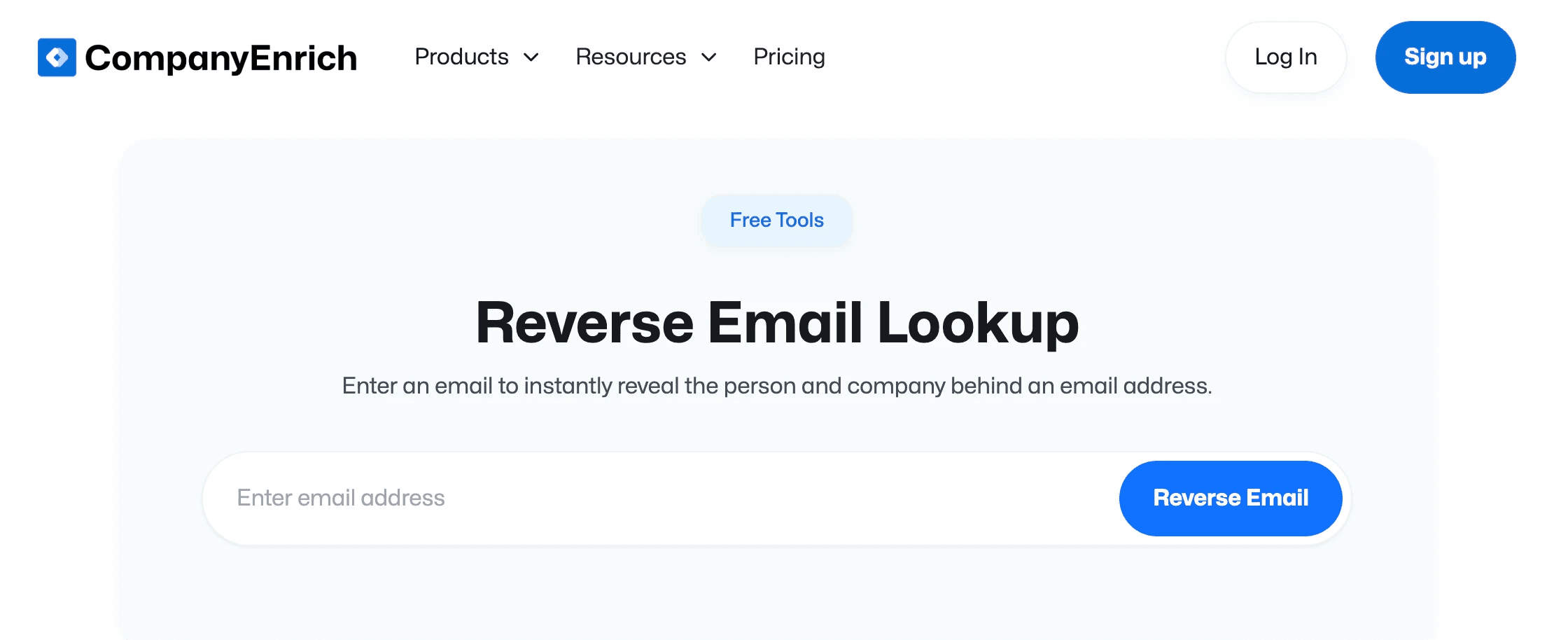
Use the contact emails to find their LinkedIn profiles via CompanyEnrich’s Reverse Email Lookup…
Use the contact emails to find their LinkedIn profiles via CompanyEnrich’s Reverse Email Lookup…
… or just search on Google…
“’email’ LinkedIn profile”
“’full name’ LinkedIn profile”
Then note them in the Reconnection Master Sheet.
Now, you might encounter the following situations…
One… You didn’t manage to find profiles for some contacts, but still wanna reach out to them. My recommendation: Go ahead; but the only data you have is past emails.
Two… You didn’t manage to find profiles for some contacts and prefer not to reach out because of the lack of data. My recommendation: Scrape more contacts in “Step 2: Daily scrapes” as backups.
… or just search on Google…
“’email’ LinkedIn profile”
“’full name’ LinkedIn profile”
Then note them in the Reconnection Master Sheet.
Now, you might encounter the following situations…
One… You didn’t manage to find profiles for some contacts, but still wanna reach out to them. My recommendation: Go ahead; but the only data you have is past emails.
Two… You didn’t manage to find profiles for some contacts and prefer not to reach out because of the lack of data. My recommendation: Scrape more contacts in “Step 2: Daily scrapes” as backups.
Step 4: Find current email
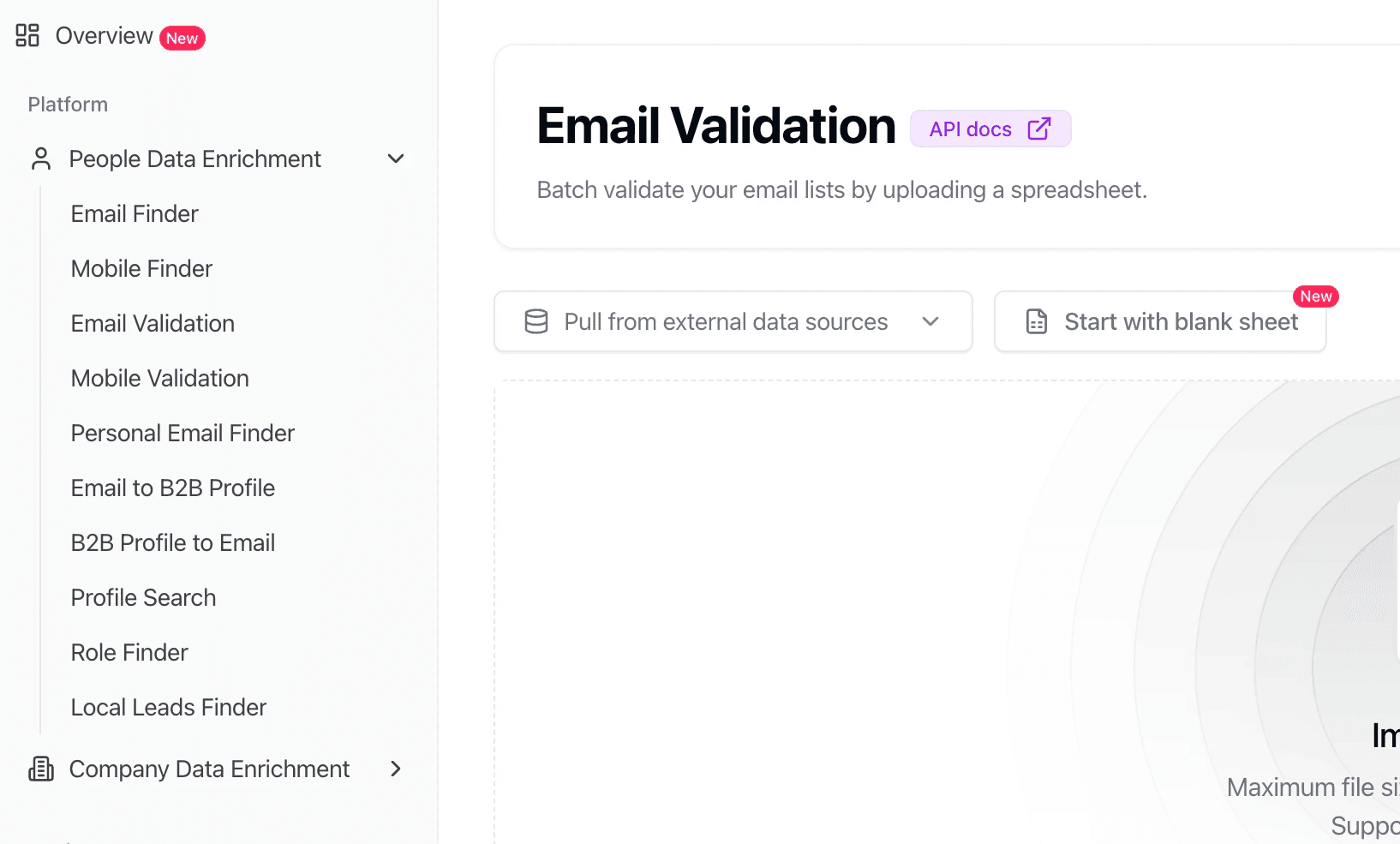
Using LeadMagic’s Email Validation…
Using LeadMagic’s Email Validation…
Check if the previous email you used to contact them is still valid or not.
If so, store it in the Reconnection Master Sheet. If not, use LeadMagic's Email Finder to find a new one.
Check if the previous email you used to contact them is still valid or not.
If so, store it in the Reconnection Master Sheet. If not, use LeadMagic's Email Finder to find a new one.
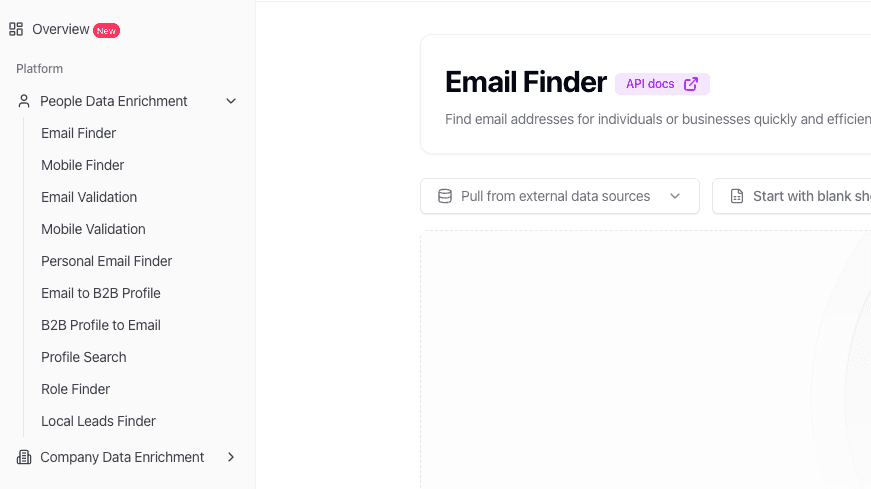
As a new LeadMagic user, you should get 100 free credits, but if you exceed the limit, you can try the following tools for more free credits or cheaper paid alternatives…
FindyMail
BetterContact
Datagma
These are some of the best providers I used to build outbound lists.
That said, no matter which tool you use, the framework is always the same:
Verify the previous email
Find a new email if it’s not valid anymore.
Now, you might bump into the following situations…
One… You didn’t manage to find the email for some contacts, but still want to reach out to them. My recommendation: Reconnect with them on other platforms.
Two… You didn’t manage to find the emails for some contacts and prefer not to reach out because you want to keep things on email only. My recommendation: Scrape more contacts in “Step 2: Daily scrapes” as backups.
As a new LeadMagic user, you should get 100 free credits, but if you exceed the limit, you can try the following tools for more free credits or cheaper paid alternatives…
FindyMail
BetterContact
Datagma
These are some of the best providers I used to build outbound lists.
That said, no matter which tool you use, the framework is always the same:
Verify the previous email
Find a new email if it’s not valid anymore.
Now, you might bump into the following situations…
One… You didn’t manage to find the email for some contacts, but still want to reach out to them. My recommendation: Reconnect with them on other platforms.
Two… You didn’t manage to find the emails for some contacts and prefer not to reach out because you want to keep things on email only. My recommendation: Scrape more contacts in “Step 2: Daily scrapes” as backups.
Step 5: Three-part research process
Why is this important?
Yes, you can get away with just the past email threads and save the trouble of finding LinkedIn profiles.
But look, would you feel awkward if you send a generic message like…
“Hey, long time no speak! It was nice working with you previously on [Project X]… what are you working on these days?”
… while your connection has been talking about their latest work on LinkedIn for the past few months?
I’m not sure about you, but I will. And to your contact, it seems like you are uninterested.
That’s why we need a structured research process.
Part one: Engaged period
First… determine warmth score based on…
Thread count
Sent message count
Meeting count
Engaged months… from first activity to last activity
Unengaged months… from last activity to today
Platform count (email, calendar, or both)
Trust score (how much you think they trust you)
Job title score (D-suite and manager = 5 pts & C-suite, owner, founder, and above = 10 pts)
Here’s how you can use the Reconnection Master Sheet to get the warmth score:
Why is this important?
Yes, you can get away with just the past email threads and save the trouble of finding LinkedIn profiles.
But look, would you feel awkward if you send a generic message like…
“Hey, long time no speak! It was nice working with you previously on [Project X]… what are you working on these days?”
… while your connection has been talking about their latest work on LinkedIn for the past few months?
I’m not sure about you, but I will. And to your contact, it seems like you are uninterested.
That’s why we need a structured research process.
Part one: Engaged period
First… determine warmth score based on…
Thread count
Sent message count
Meeting count
Engaged months… from first activity to last activity
Unengaged months… from last activity to today
Platform count (email, calendar, or both)
Trust score (how much you think they trust you)
Job title score (D-suite and manager = 5 pts & C-suite, owner, founder, and above = 10 pts)
Here’s how you can use the Reconnection Master Sheet to get the warmth score:
Input the trust score, platform count, thread count, sent message count, meeting count, job title score, first activity date, and last activity date into the respective columns.
Pull down the cells, “Today’s date”, “Engaged Month(s)”, “Unengaged Month(s)”, and “Warmth Score” from the second or previous row. They contain formulas, so DO NOT edit or remove them.
As long as all 8 factors are keyed in, you should see your warmth score.
Based on that, you can roughly know what to say, what not to say, and what to expect from this contact.
Second… past interaction summary.
Based on the past email threads and meeting transcripts, write a summary or bullets on what you two talked about.
Store notes for this section under “Engaged Period Talking Point” in the Reconnection Master Sheet.
Part two: Unengaged period
Check out the contact’s work experiences: What are roles he started, ended, or started and ended during the period when you guys were unengaged?
And you’d know…
If they have changed in verticals or specializations, or have been promoted to a decision maker, that might open up more opportunities for you to refer them deals, connect them with your network, or tap on them to hire great talents for your agency.
If they’ve worked for or with a company that’s your ICP… which makes it easy for you to get a warm introduction.
If there’s a lesson you can learn from without making the same mistakes they made or taking extra steps that cost them a fortune.
Those are just some ideas to craft a talking point and spark a conversation.
Store notes for this section under “Unengaged Period Talking Point” in the Reconnection Master Sheet.
Part three: Current state
Find out what they’ve been up to these days…
Their recent LinkedIn activities: See what they’re posting about, what posts they liked, commented on, or reposted, and interpret the problems they might be facing or goals they wanna achieve and see how you can help them.
The people or companies they tagged on LinkedIn: You’d know who they’re hanging out with, in which communities, or events they attend frequently.
Their company website: Look for recent case studies, rebranding activities, new pricing models, lead magnets, recent news and articles, etc.
Google News: Find news related to their company and see how you can relate to their job title.
Store notes for this section under “Current Period Talking Point” in the Reconnection Master Sheet.

Input the trust score, platform count, thread count, sent message count, meeting count, job title score, first activity date, and last activity date into the respective columns.
Pull down the cells, “Today’s date”, “Engaged Month(s)”, “Unengaged Month(s)”, and “Warmth Score” from the second or previous row. They contain formulas, so DO NOT edit or remove them.
As long as all 8 factors are keyed in, you should see your warmth score.
Based on that, you can roughly know what to say, what not to say, and what to expect from this contact.
Second… past interaction summary.
Based on the past email threads and meeting transcripts, write a summary or bullets on what you two talked about.
Store notes for this section under “Engaged Period Talking Point” in the Reconnection Master Sheet.
Part two: Unengaged period
Check out the contact’s work experiences: What are roles he started, ended, or started and ended during the period when you guys were unengaged?
And you’d know…
If they have changed in verticals or specializations, or have been promoted to a decision maker, that might open up more opportunities for you to refer them deals, connect them with your network, or tap on them to hire great talents for your agency.
If they’ve worked for or with a company that’s your ICP… which makes it easy for you to get a warm introduction.
If there’s a lesson you can learn from without making the same mistakes they made or taking extra steps that cost them a fortune.
Those are just some ideas to craft a talking point and spark a conversation.
Store notes for this section under “Unengaged Period Talking Point” in the Reconnection Master Sheet.
Part three: Current state
Find out what they’ve been up to these days…
Their recent LinkedIn activities: See what they’re posting about, what posts they liked, commented on, or reposted, and interpret the problems they might be facing or goals they wanna achieve and see how you can help them.
The people or companies they tagged on LinkedIn: You’d know who they’re hanging out with, in which communities, or events they attend frequently.
Their company website: Look for recent case studies, rebranding activities, new pricing models, lead magnets, recent news and articles, etc.
Google News: Find news related to their company and see how you can relate to their job title.
Store notes for this section under “Current Period Talking Point” in the Reconnection Master Sheet.
Step 6: The $200k talking point
This ONE single talking point has generated $200k worth of contracts for Chris LaFay from Classic City Consulting as a sub-$1M agency in 2025.
… and helped Justin Stephenson and his team at Sandler Training London City leverage it to build relationships with companies like Clientshare, Logisnext, and more.
This is probably the “laziest” talking point I’ve ever known of.
But it works so well that it can’t be ignored.
And it’s best if…
You can’t find much detail on the web/LinkedIn about the contact
You two have talked, but never really worked together
You two sorta have a similar vibe
And the talking point is… personal story.
It’s literally what you’ve experienced recently…
Where were you last weekend?
What happened when you were queuing for food?
What did the weird ass deliveryman whisper into your ears?
And here’s the email template Chris LaFay uses to almost always get replies…
‘Hey {{ first_name }}, hope this week’s been good. Anything exciting happening at work or personally? My wife and I just got back from a few days at the beach — had a podcast to record nearby, so made it a short trip.’
And here’s what Justin Stephenson prefers…
‘John, saw {X} this morning that made me think of you. What’s the excitement happening in your world these days? Would love to hear what you’re up to when you have time. No need to rush a reply, as I am sure lots is happening. Best, Justin.’
Nothing fancy, just thoughts and feelings.
… and it works well.
This ONE single talking point has generated $200k worth of contracts for Chris LaFay from Classic City Consulting as a sub-$1M agency in 2025.
… and helped Justin Stephenson and his team at Sandler Training London City leverage it to build relationships with companies like Clientshare, Logisnext, and more.
This is probably the “laziest” talking point I’ve ever known of.
But it works so well that it can’t be ignored.
And it’s best if…
You can’t find much detail on the web/LinkedIn about the contact
You two have talked, but never really worked together
You two sorta have a similar vibe
And the talking point is… personal story.
It’s literally what you’ve experienced recently…
Where were you last weekend?
What happened when you were queuing for food?
What did the weird ass deliveryman whisper into your ears?
And here’s the email template Chris LaFay uses to almost always get replies…
‘Hey {{ first_name }}, hope this week’s been good. Anything exciting happening at work or personally? My wife and I just got back from a few days at the beach — had a podcast to record nearby, so made it a short trip.’
And here’s what Justin Stephenson prefers…
‘John, saw {X} this morning that made me think of you. What’s the excitement happening in your world these days? Would love to hear what you’re up to when you have time. No need to rush a reply, as I am sure lots is happening. Best, Justin.’
Nothing fancy, just thoughts and feelings.
… and it works well.
Step 7: Reconnect and track
A few pointers that you MUST take note when crafting an outreach email…
Don’t use AI… in a market full of AI, you stand out if you sound human.
Don’t delegate to anyone… unless you have a proper SOP in place.
Give enough context… but keep it short.
Write freely… and edit later.
Use images and links sparingly… so you don’t seem like a spammer.
Avoid this list of spam words as much as possible.
Before you hit send, make sure…
You’re not sending more than 50 emails per day.
Your email account has DKIM, DMARC, and SPF set up. Learn more here.
Next up, track outreach activities using these three Gmail labels…
Contact Reached
Contact Replied
Meeting Scheduled
Alongside the Reconnection Master Sheet, here’s the exact workflow…
… upon sending an outreach email…
Label as Contact Reached
Check the box Contact Reached?
And update First Reconnection Date
… upon receiving a reply…
Label as Contact Replied
Check the box Contact Replied?
And update First Reply Date
… upon booking a meeting…
Label as Meeting Scheduled
Check the box Meeting Scheduled?
And update First Meeting Date
At the end of every month…
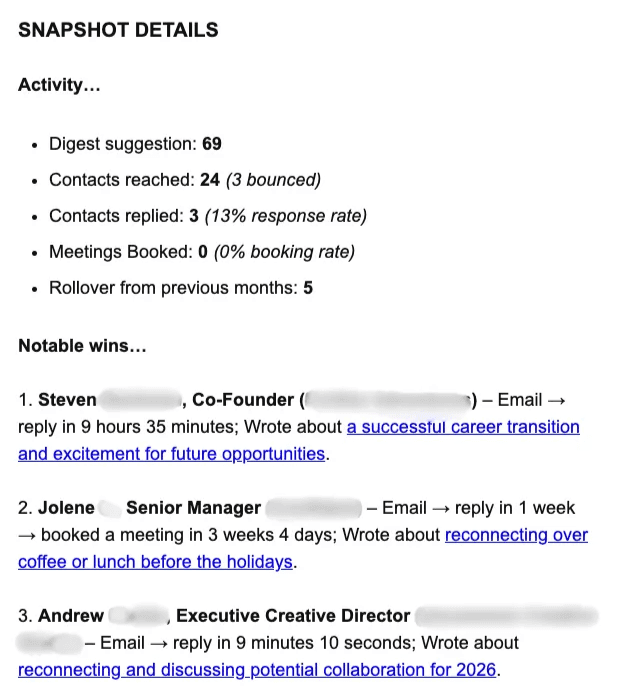
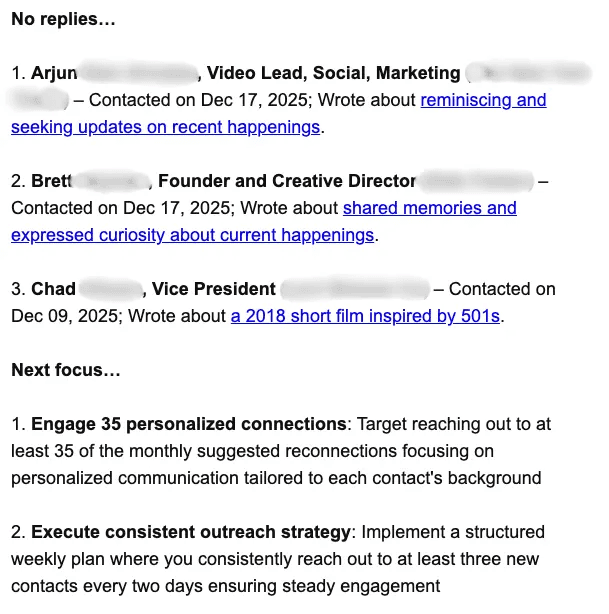
Get a copy of Monthly Snapshot Doc
Note down the key numbers under Activity.
Note down three wins under Notable Wins.
Note down three contacts that have yet to reply to your emails under No replies.
Note down two areas of improvement for next month under Next Focus.
Here’s an example…
A few pointers that you MUST take note when crafting an outreach email…
Don’t use AI… in a market full of AI, you stand out if you sound human.
Don’t delegate to anyone… unless you have a proper SOP in place.
Give enough context… but keep it short.
Write freely… and edit later.
Use images and links sparingly… so you don’t seem like a spammer.
Avoid this list of spam words as much as possible.
Before you hit send, make sure…
You’re not sending more than 50 emails per day.
Your email account has DKIM, DMARC, and SPF set up. Learn more here.
Next up, track outreach activities using these three Gmail labels…
Contact Reached
Contact Replied
Meeting Scheduled
Alongside the Reconnection Master Sheet, here’s the exact workflow…
… upon sending an outreach email…
Label as Contact Reached
Check the box Contact Reached?
And update First Reconnection Date
… upon receiving a reply…
Label as Contact Replied
Check the box Contact Replied?
And update First Reply Date
… upon booking a meeting…
Label as Meeting Scheduled
Check the box Meeting Scheduled?
And update First Meeting Date
At the end of every month…
Get a copy of Monthly Snapshot Doc
Note down the key numbers under Activity.
Note down three wins under Notable Wins.
Note down three contacts that have yet to reply to your emails under No replies.
Note down two areas of improvement for next month under Next Focus.
Here’s an example…
Want something simpler? Try Relationship Digest.
Skip all complicated steps… and focus on reconnecting with old contacts.